
 We accept Interac e-Transfer
IPTV installation guide
How to Install IPTV on a Firestick
The complete Fire TV Stick setup, from unlocking app installs to your first live channel, with the players that work best and fixes for common problems.
To install IPTV on a Firestick (Amazon's Fire TV Stick, often written Fire Stick), turn on app installs from unknown sources in Developer Options, install the free Downloader app from the Amazon Appstore, use it to install an IPTV player such as IPTV Smarters Pro or TiviMate from the player's official website, then log in with the Xtream Codes details from your IPTVCA email. It takes about ten minutes and needs no computer.
IPTVCA gives you the login (the channels). The player app is the software that plays them on your Fire TV. Players are made by other companies, and some charge for a premium version; that is separate from your IPTVCA plan.
Best IPTV players for Fire TV
| Player | Where to get it | Good to know |
|---|---|---|
| IPTV Smarters Pro | Official website, through Downloader | Simple menus, live TV, guide, movies and series in one app. |
| TiviMate | Official website, through Downloader | Cable-style TV guide. Some features, including movies and series, need TiviMate Premium. |
| Hot Player | Official website or app store | Also on smart TVs and Roku; needs its own licence after its free period. |
These players are made by other companies. We don't sell them or their licences; your IPTVCA plan is the login you enter in them.
Part 1: Allow apps from unknown sources
Fire TV only installs Amazon Appstore apps until you allow one app to install others. This is a normal setting in Fire OS; nothing is hacked or “jailbroken”.
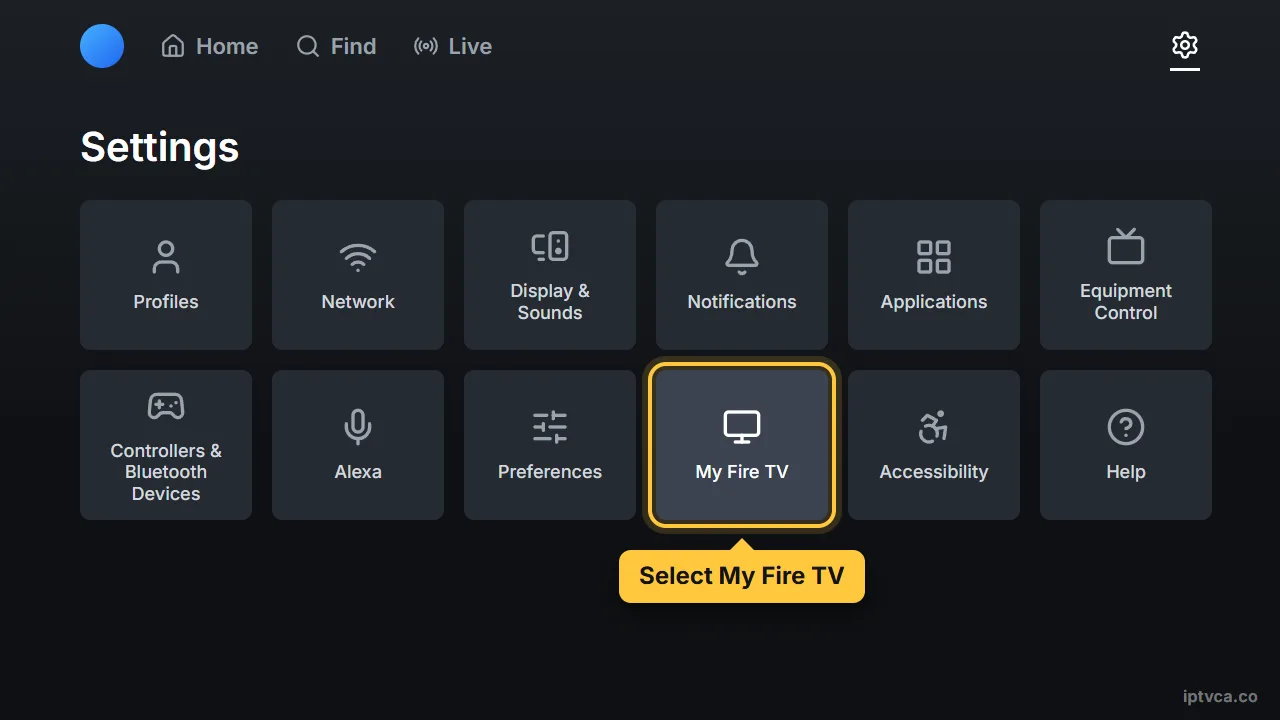
- Open Settings
From the Fire TV home screen, go to the gear icon, then My Fire TV.
- Show Developer Options if it's hidden
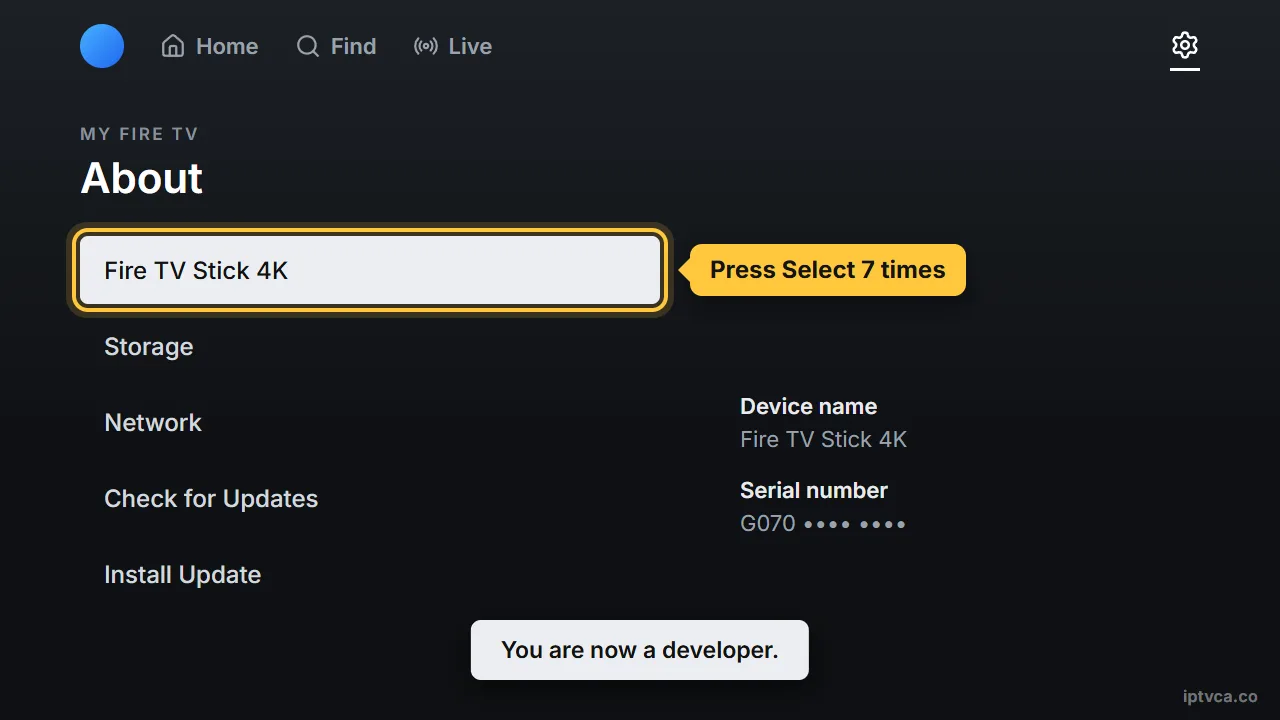
If you don't see Developer Options, open About, highlight your device name (for example Fire TV Stick 4K) and press the select button seven times until the message says you are a developer. Press Back.
- Turn on Install unknown apps
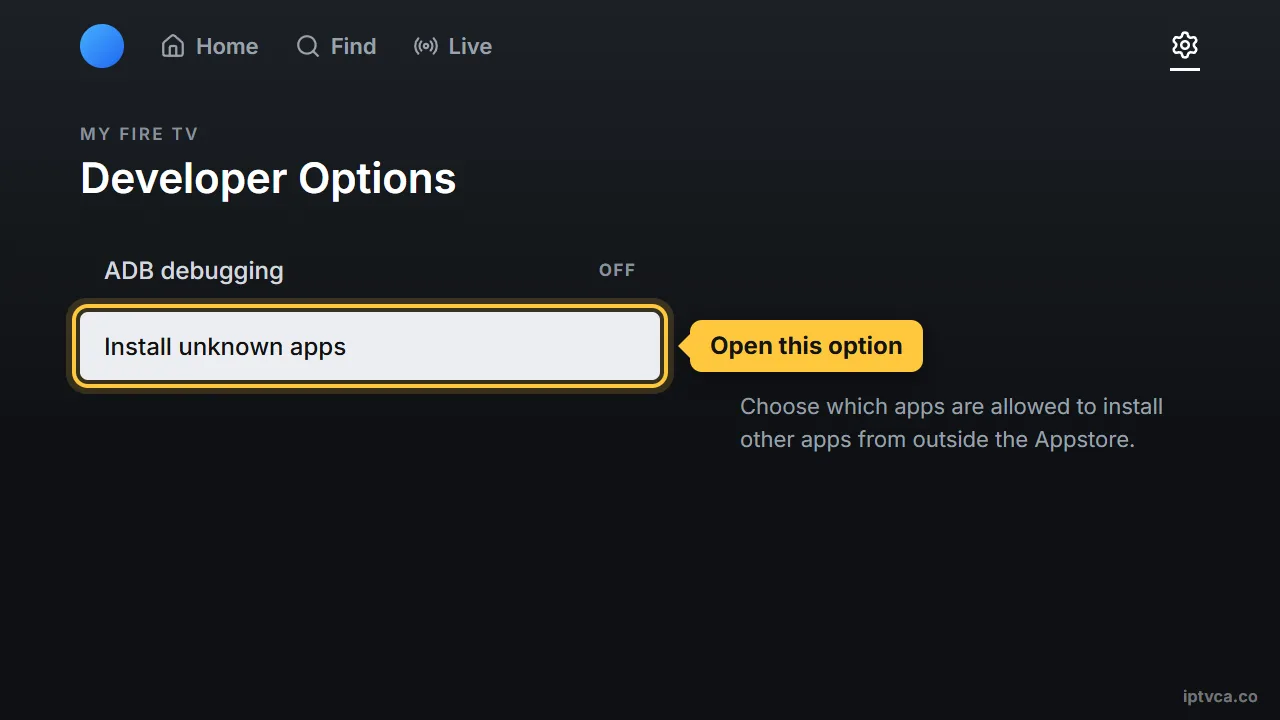
Open Developer Options, then Install unknown apps. You will switch it on for Downloader in Part 2.
Part 2: Install the Downloader app
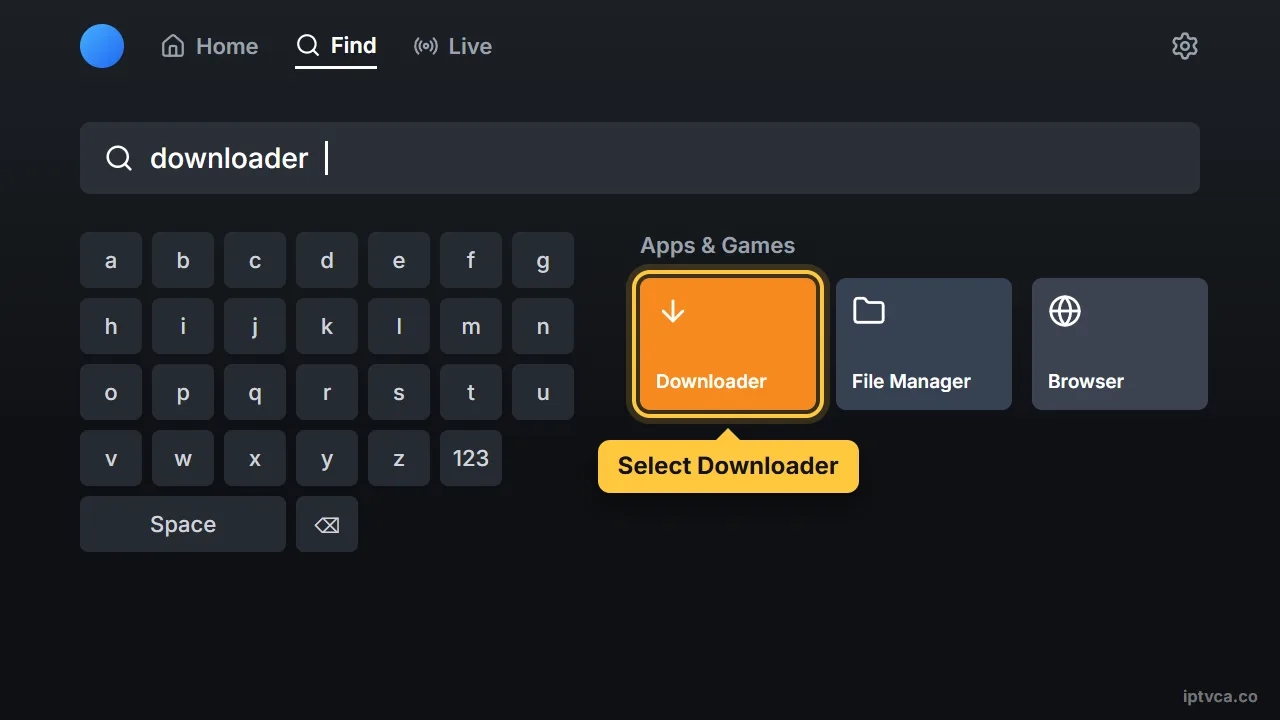
- Search for Downloader
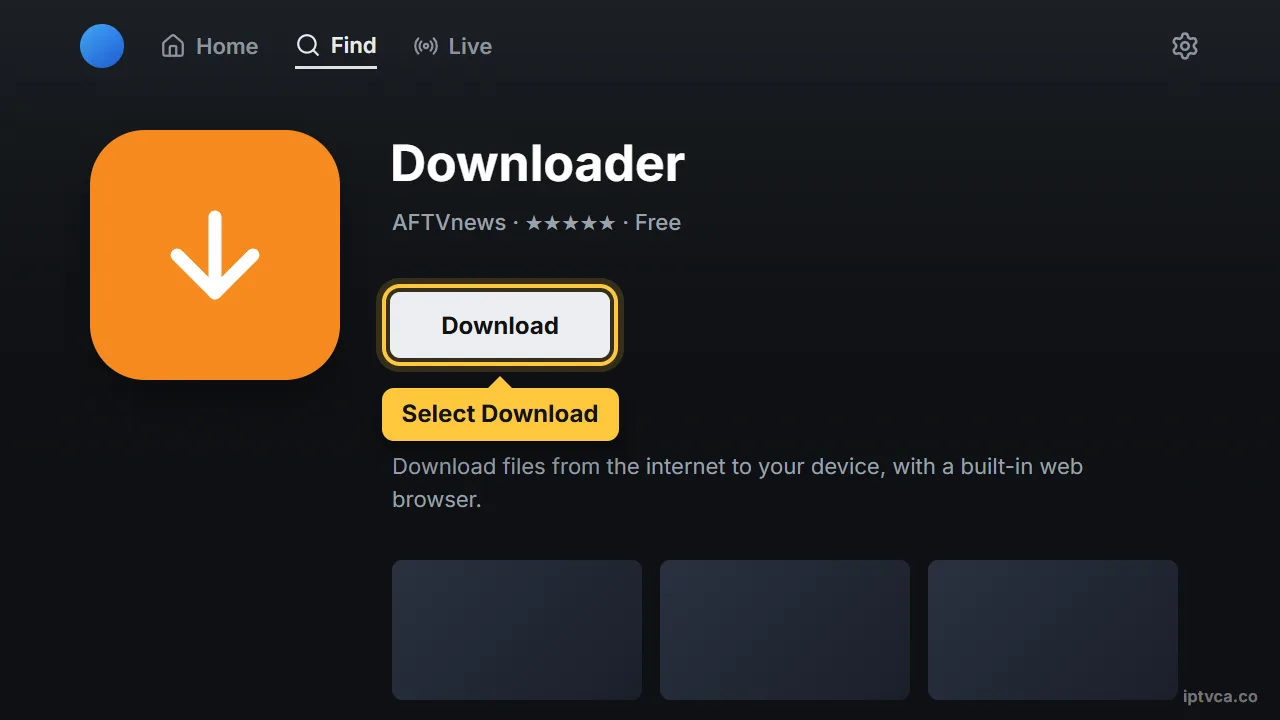
On the home screen choose Find, then Search, and type Downloader. Pick the orange Downloader app by AFTVnews.
- Download and open it
Select Download (or Get). When it finishes, open Downloader and allow access to files if asked.
- Give Downloader permission
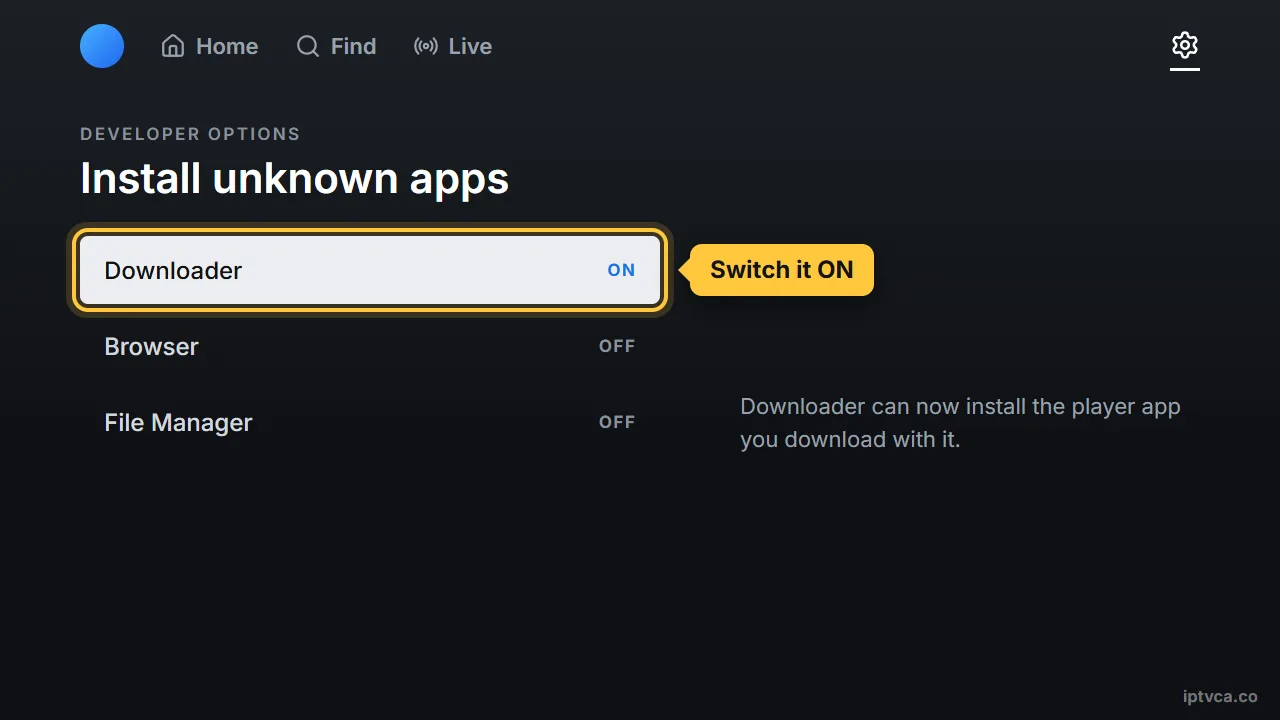
Back in Settings, My Fire TV, Developer Options, Install unknown apps, switch Downloader to ON.
Part 3: Install your IPTV player
- Open Downloader
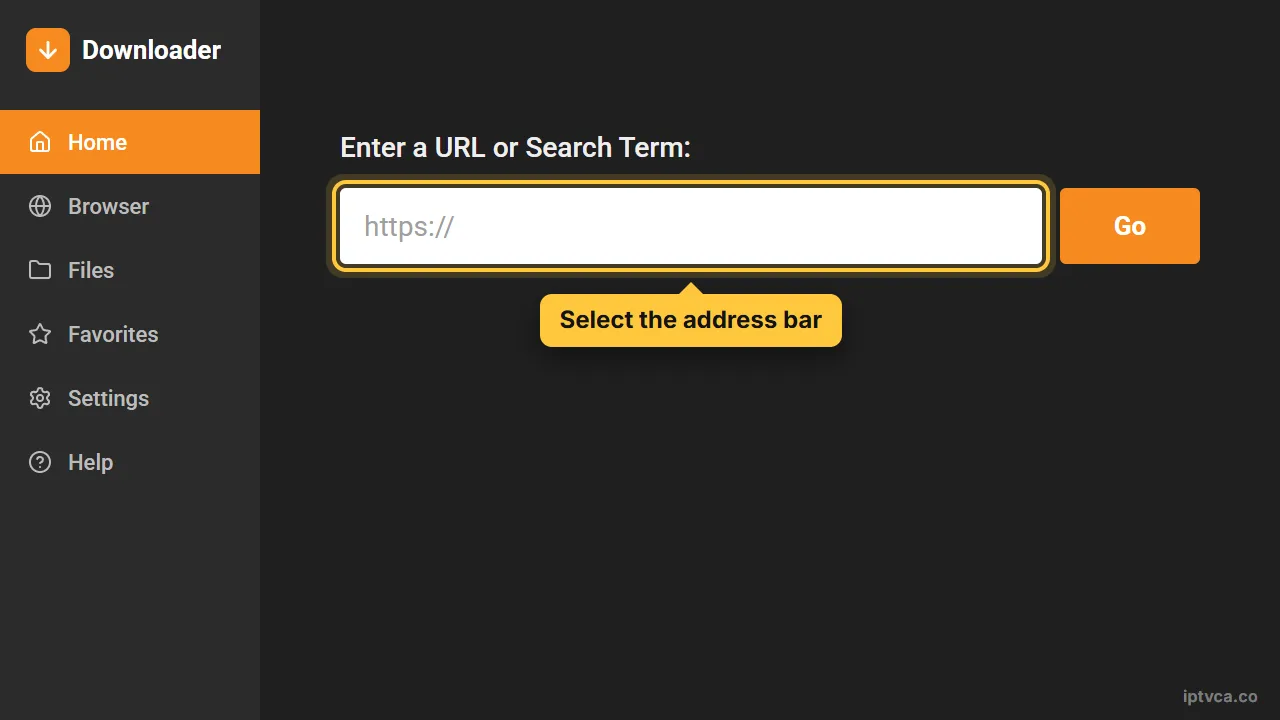
Select the address bar on the Home tab.
- Enter the player's official website
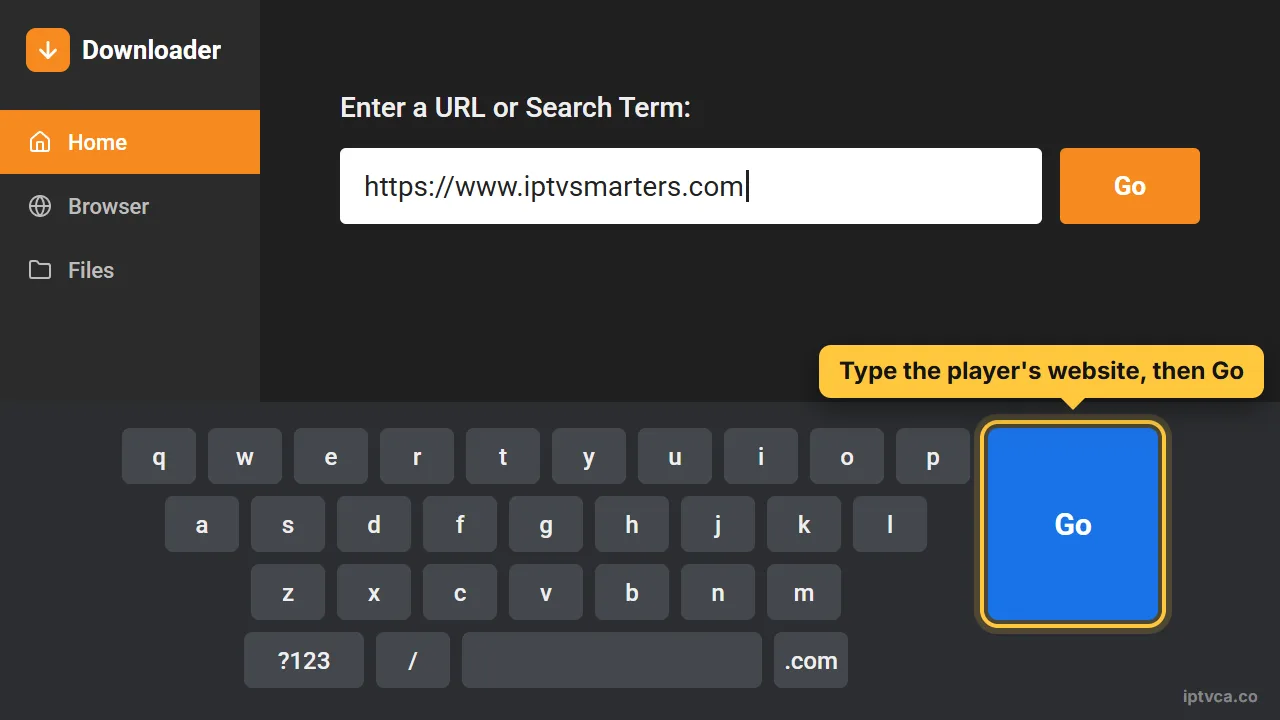
Type the address of the player's official website (for example the IPTV Smarters or TiviMate site), press Go, and download the Fire TV / Android version.
- Install it
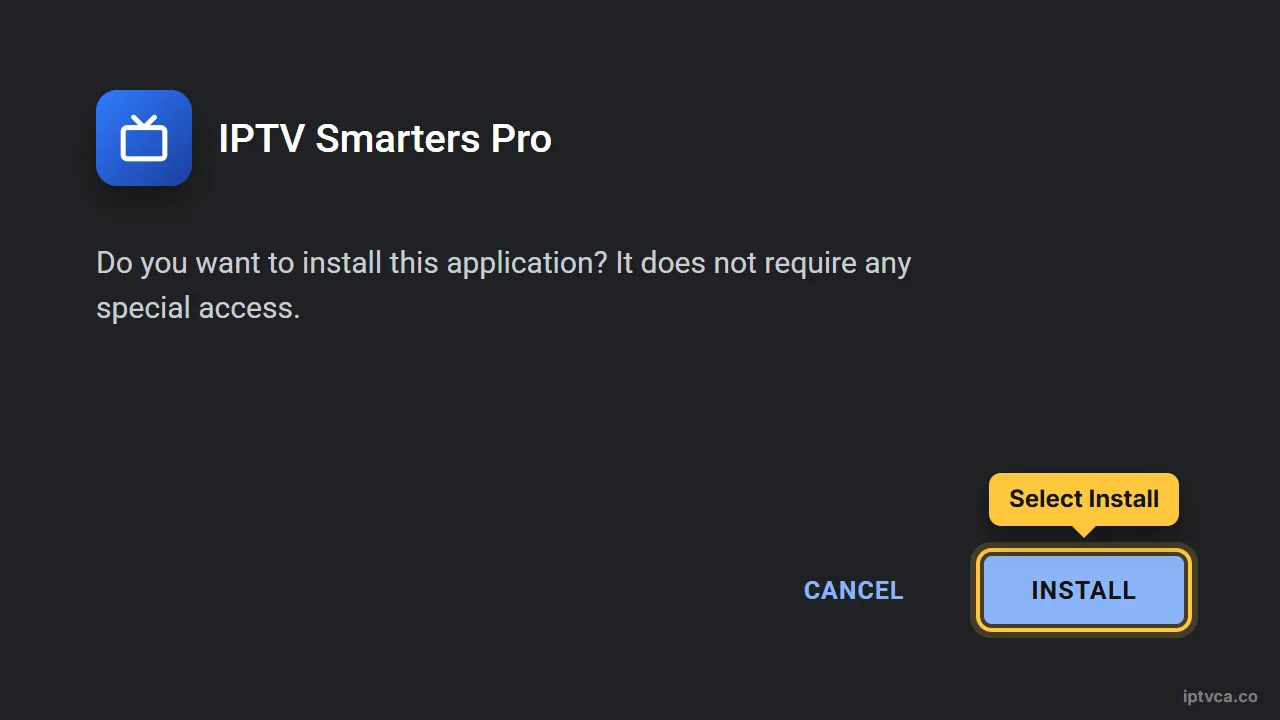
When the installer opens, select Install, then Done. Choose Delete to remove the setup file and free up storage.
Skip “loaded” apps or unknown download codes found on forums. We never ask you to install anything from an unofficial site.
Part 4: Log in and start watching
- Open the player
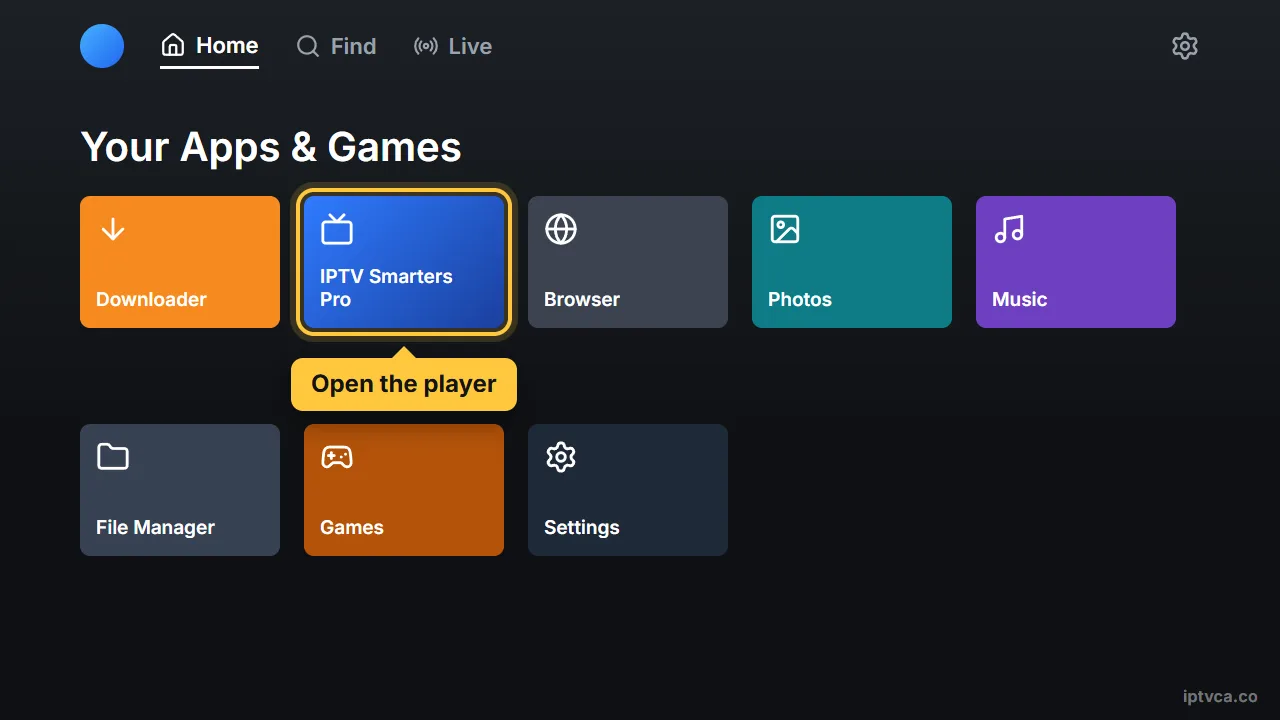
Go to Settings, Applications, Manage installed applications, or hold the Home button and choose Apps, then open the player.
- Add a new user or playlist
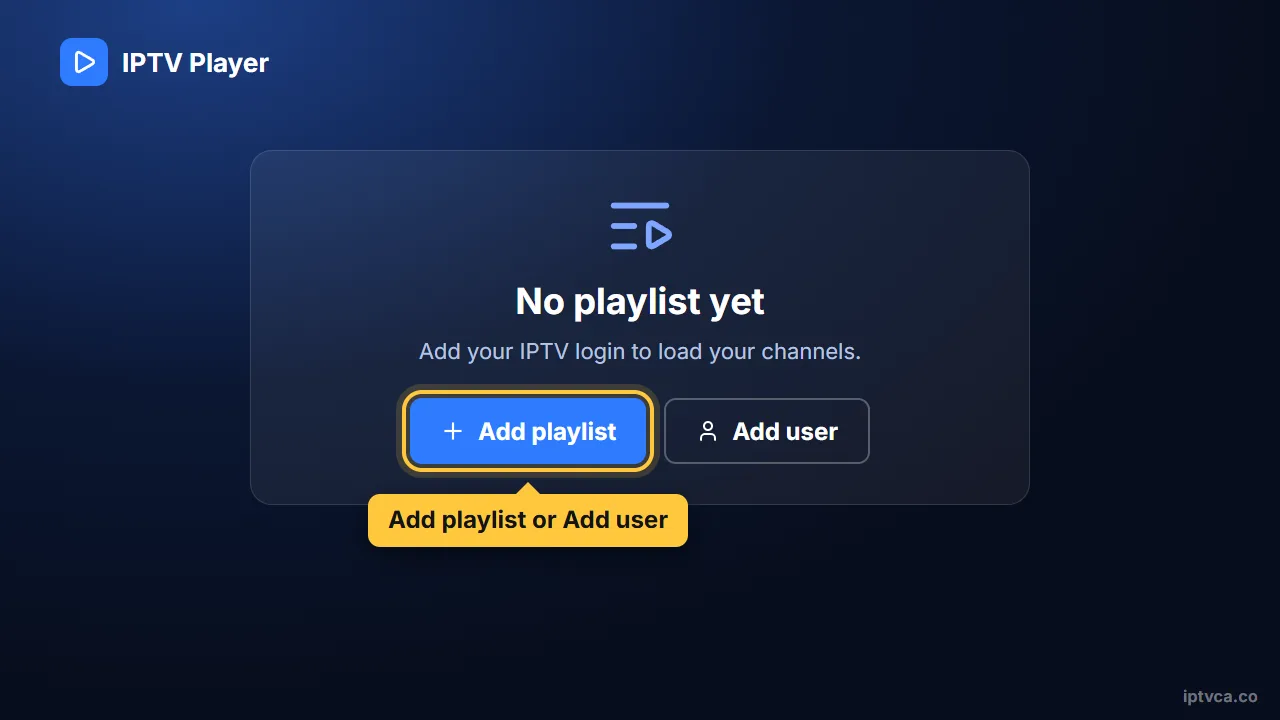
Look for Add user, Add playlist or the plus icon.
- Log in with your Xtream Codes details
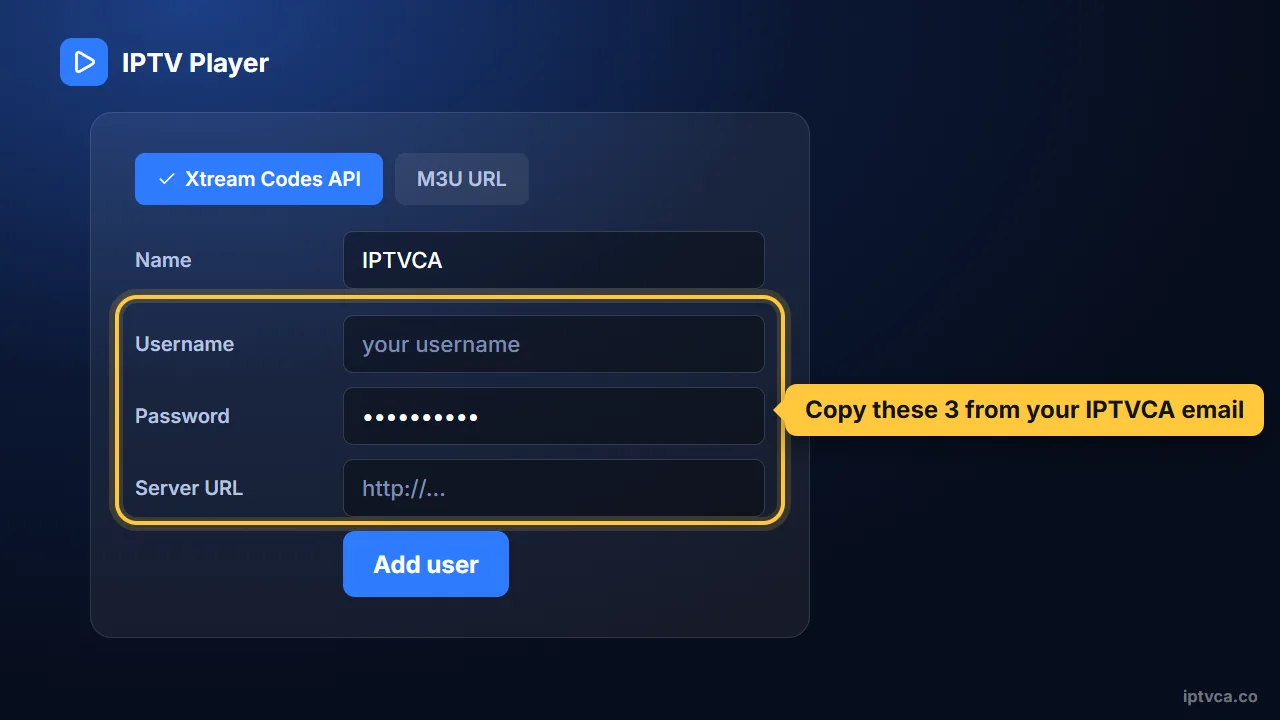
Choose “Xtream Codes” (sometimes “Login with Xtream Codes API”). Type the server URL, username and password exactly as they appear in your IPTVCA email, including capital letters, then save. Channels, the TV guide and the movie library load on their own; the first load can take a minute or two.
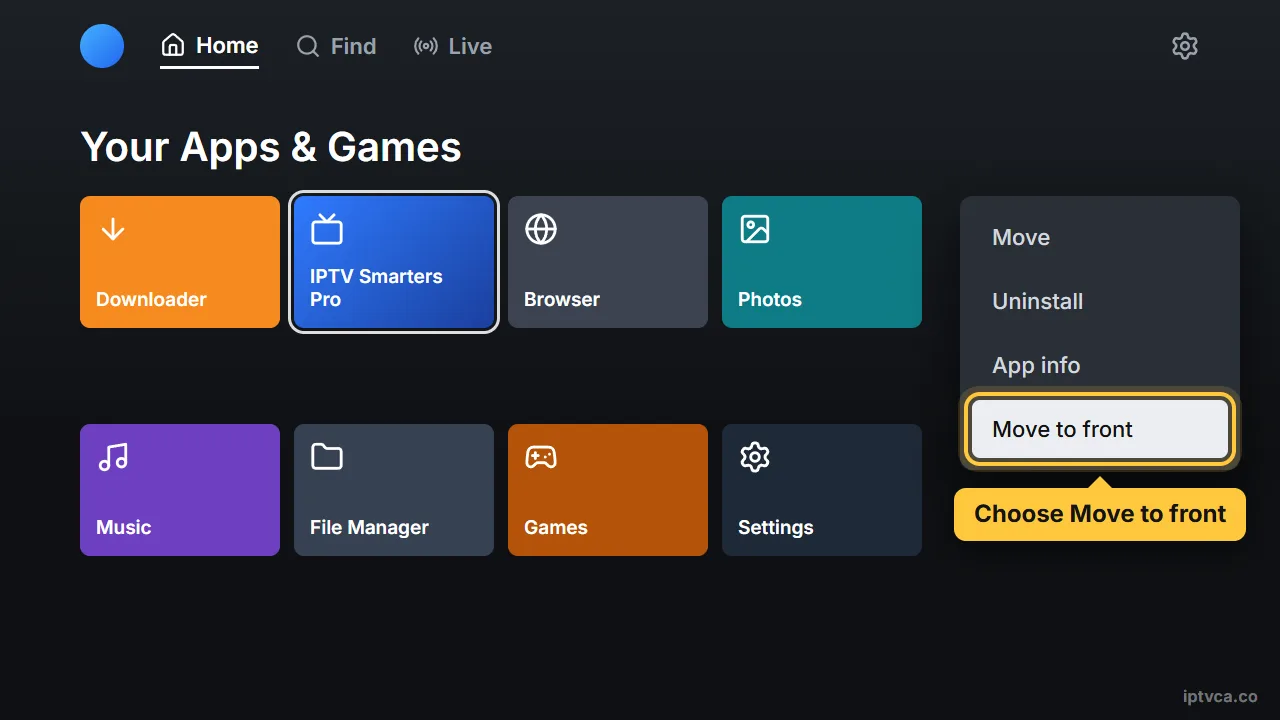
- Pin the app to your home screen
In Your Apps, highlight the player, press the menu button (three lines) and choose Move to front.
Tips for the best picture
- For 4K, a Fire TV Stick 4K, 4K Max or Fire TV Cube gives the smoothest picture and menus.
- Around 25 Mbps per screen is comfortable for HD and 50 Mbps for 4K. A wired connection, or Wi-Fi on the 5 GHz band close to the router, prevents most buffering.
- An Ethernet adapter for Fire TV is the easiest fix if your Wi-Fi is weak where the TV is.
- Restart the Fire TV once a week (hold Select and Play for five seconds) to keep it fast.
Fire TV IPTV troubleshooting
- Developer Options is missing
Open Settings, My Fire TV, About and press select seven times on your device name.
- The installer says “App not installed”
Storage is full. Delete the setup file in Downloader and uninstall apps you don't use, then try again.
- “Invalid login” or no channels
Re-type the username and password: they are case-sensitive and must have no extra spaces. Check the server URL too.
- The TV guide says “No information”
Refresh the EPG in the player's settings. A few channels simply don't publish guide data.
- Live TV works but movies don't
Update the player and clear its cache. In TiviMate, movies and series need the Premium version.
Stuck? Email support@iptvca.co with your device model and the app you use. We answer in English and French. Contact support.
Other devices
Set Up IPTV on Another Device
Every guide uses the same IPTVCA login.
- Fire TV StickFire TV Stick, 4K, 4K Max, Lite, Fire TV Cube, Fire TV smart TVs
- Android TV & Google TVGoogle TV Streamer, Chromecast with Google TV, Nvidia Shield, Sony, TCL, Hisense, Android boxes
- Samsung & LG Smart TVSamsung (Tizen), LG (webOS), Hisense VIDAA and other smart TVs
- RokuRoku TV, Roku Streaming Stick, Express, Ultra
- Apple TV, iPhone & iPadApple TV HD & 4K, iPhone, iPad
Questions
IPTV on Fire TV: Quick Answers
Can I get IPTV on a Firestick?
Yes. The Fire TV Stick is one of the most popular IPTV devices in Canada. You install an IPTV player app and log in with your subscription details; no extra box or cable is needed.
What is the best IPTV player for Firestick?
IPTV Smarters Pro is the easiest to start with, and TiviMate has the most TV-like guide. Both work with our Xtream Codes login. Try the free version of a player first and keep the one you like.
Do I need to jailbreak my Firestick?
No. “Jailbreaking” is a misleading word for switching on Install unknown apps, which is a standard Fire TV setting. You don't modify the device.
Which Firestick is best for IPTV?
Any current model works. For 4K channels and a faster guide, choose the Fire TV Stick 4K, 4K Max or the Fire TV Cube.
Can I use IPTVCA on several Firesticks?
Yes. Install the player on each one and use the same login. Your plan sets how many can stream at the same time: 1, 2, 3 or 4 devices.
Can I test the setup before I pay?
Yes. Ask for the free 24-hour trial: you get a real login, so you can install the app, check your channels and picture quality, and only choose a plan afterwards.
Try It on Your Fire TV for Free
Get a 24-hour trial login, follow this guide, and check your channels before you pay. Plans from $19 CAD.