
 We accept Interac e-Transfer
IPTV installation guide
How to Set Up IPTV on Android TV and Google TV
Android TV is the easiest platform for IPTV: most players are right in Google Play. This guide also covers Nvidia Shield, Chromecast with Google TV and Android boxes.
To set up IPTV on Android TV or Google TV, open Google Play on your TV, install an IPTV player such as TiviMate or Perfect Player, open it, choose Xtream Codes and enter the server URL, username and password from your IPTVCA email. Your channels and TV guide load in a few minutes, with no computer needed.
Sony, TCL, Hisense (Google TV models) and Philips TVs often run Google TV. If your TV has the Google Play Store, use this guide. Samsung and LG TVs don't: follow the Smart TV guide instead.
Best IPTV players for Android TV
| Player | Where to get it | Good to know |
|---|---|---|
| TiviMate | Google Play | Cable-style guide made for TV remotes. Movies and series need TiviMate Premium. |
| Perfect Player | Google Play | Light and fast, a good choice for older boxes. |
| IPTV Smarters Pro | Official website, through Downloader | Live TV, guide and the full movie library in one app. |
These players are made by other companies. We don't sell them or their licences; your IPTVCA plan is the login you enter in them.
Step 1: Install an IPTV player from Google Play
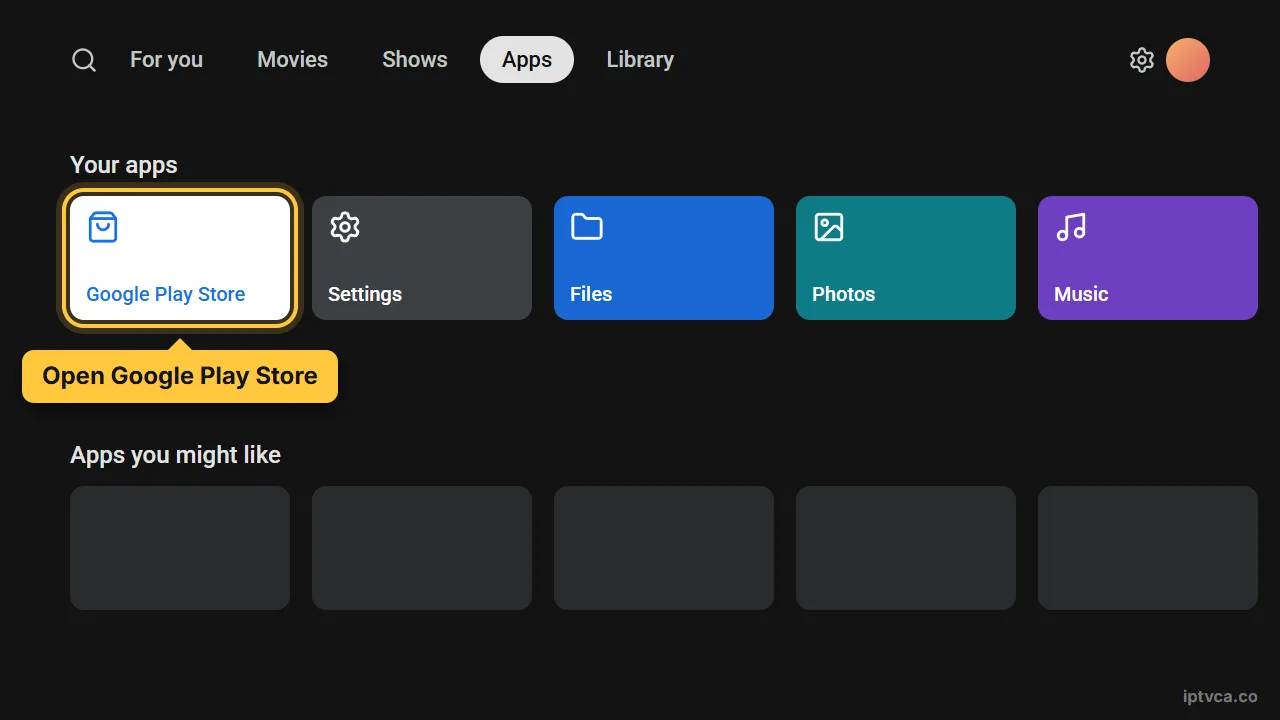
- Open Google Play
On the home screen open Apps, then Google Play Store (on Google TV: search from the Apps tab).
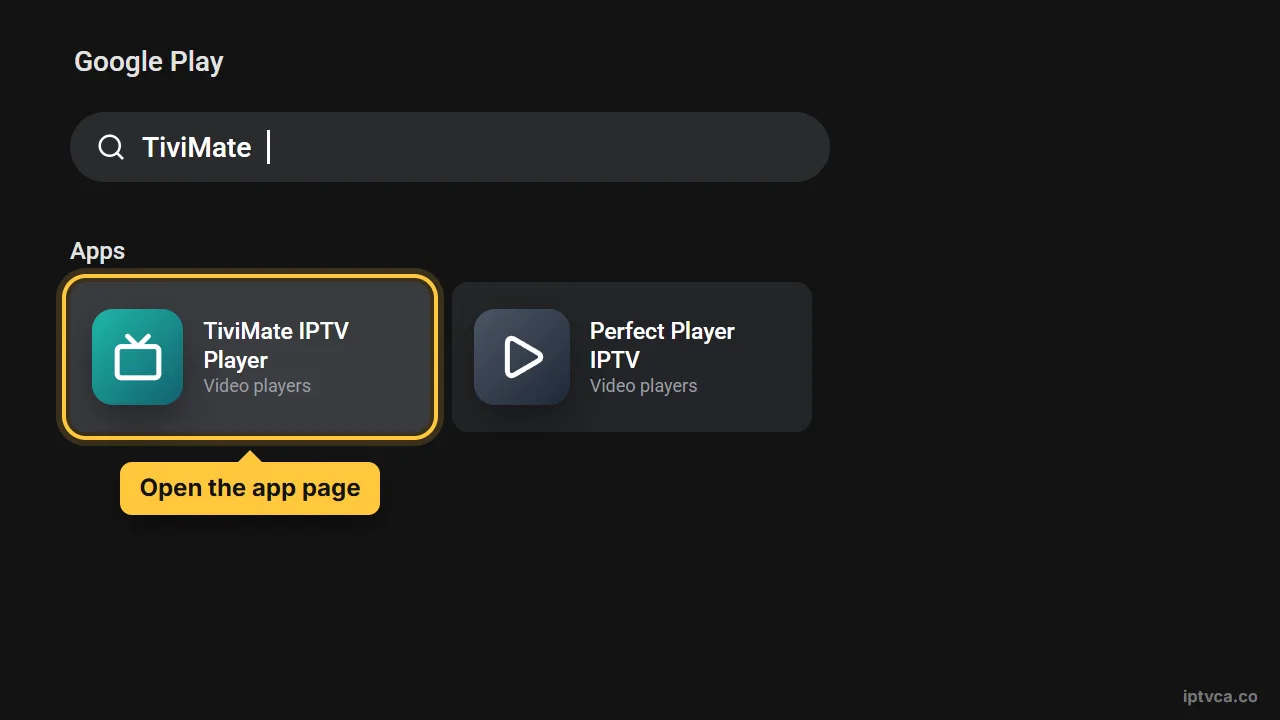
- Search for the player
Type TiviMate or Perfect Player and open the app page.
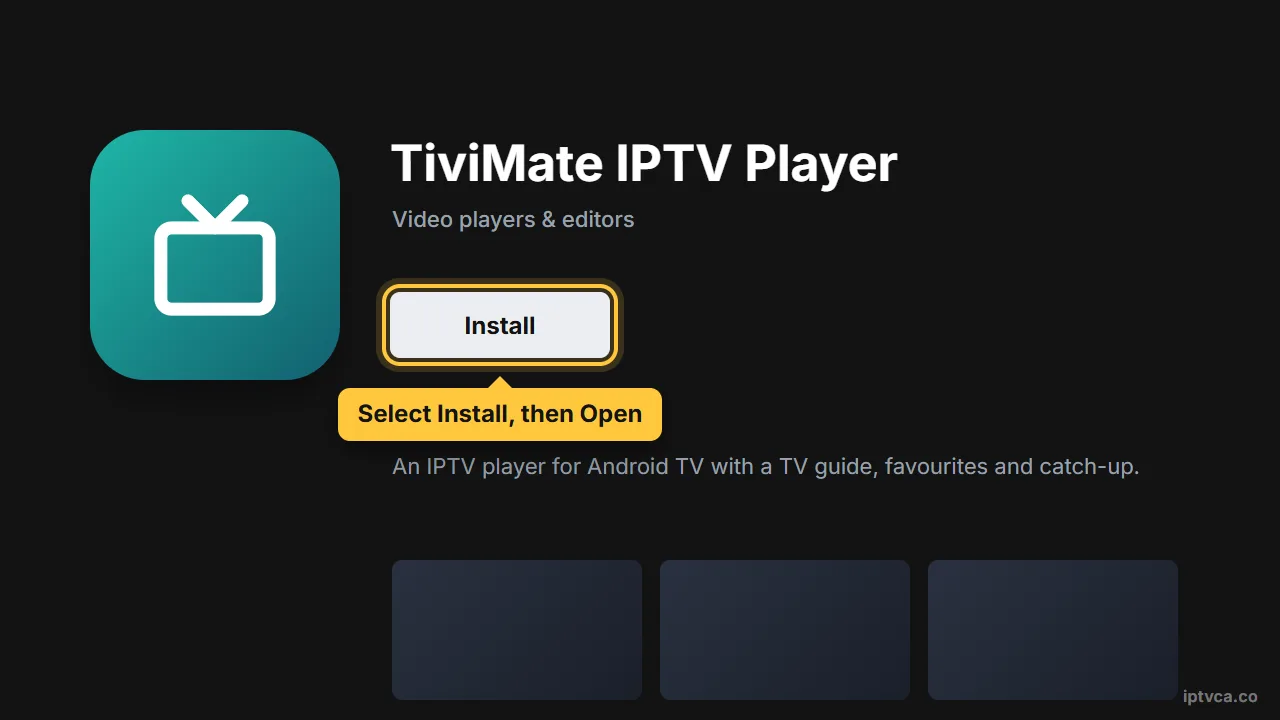
- Install and open it
Select Install, wait a few seconds, then Open.
Step 2: Add your IPTVCA login
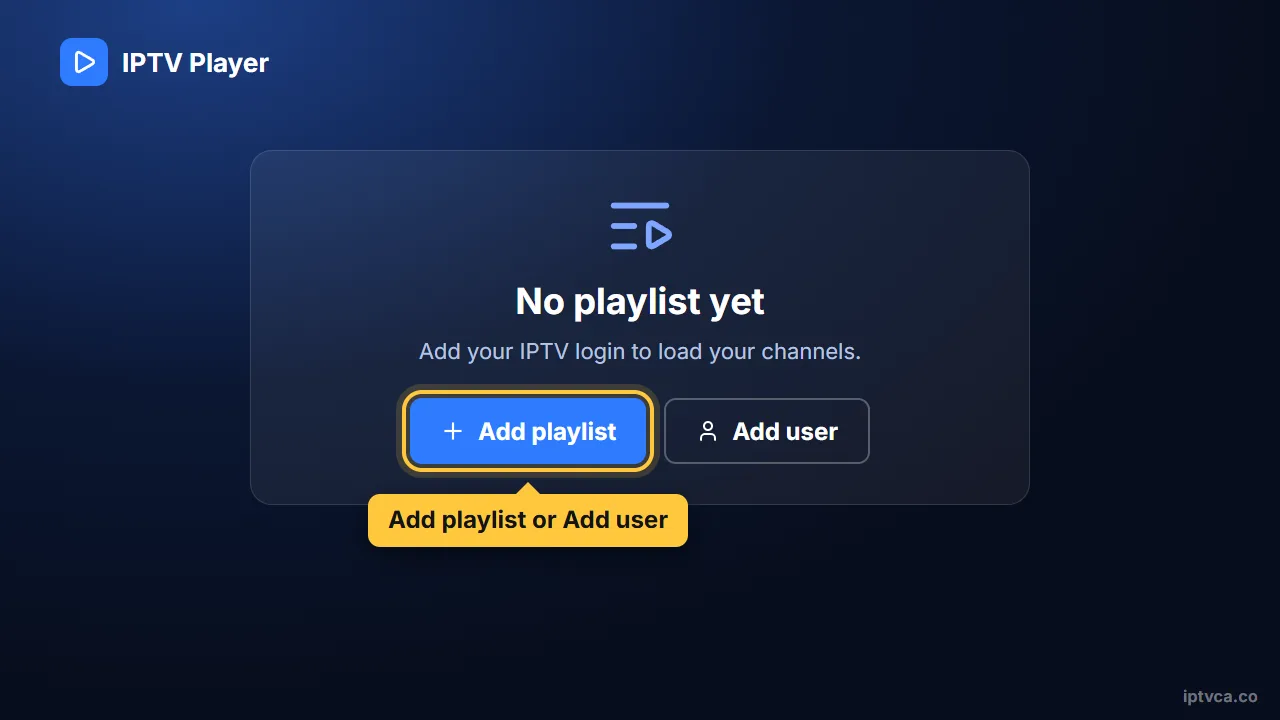
- Add a playlist
In TiviMate choose Add playlist; in other players look for Add user or the plus icon.
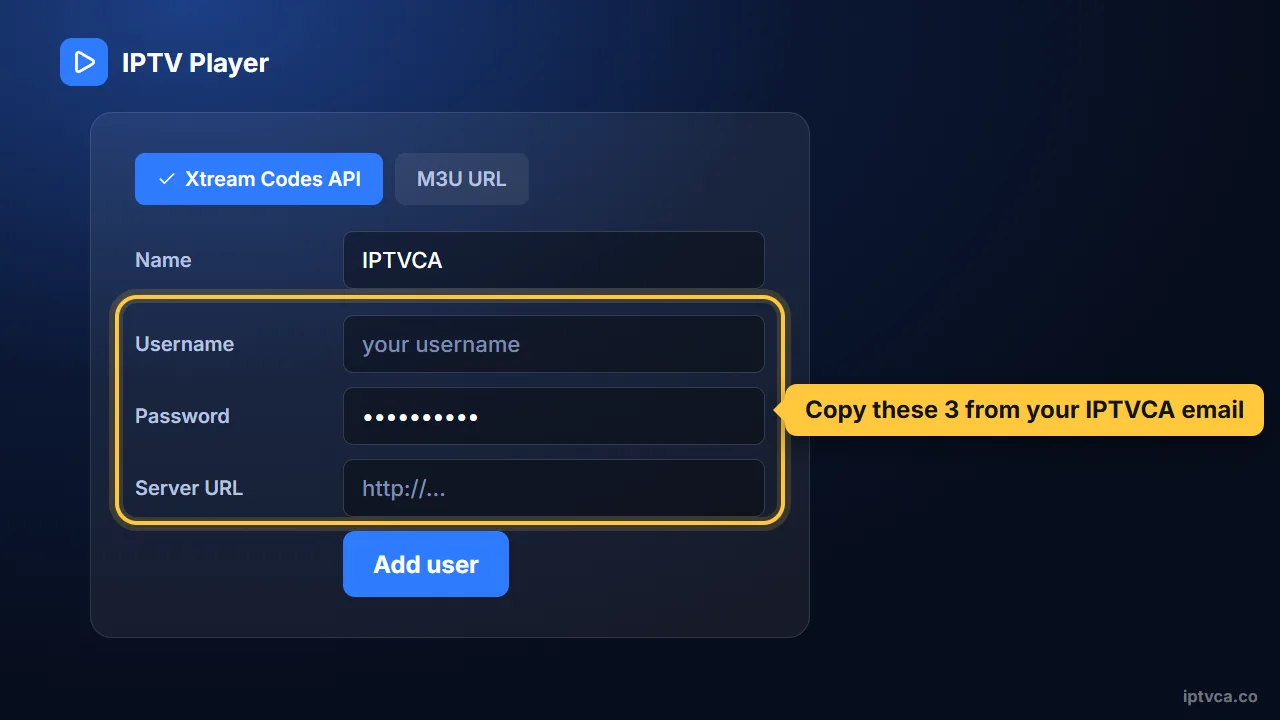
- Log in with your Xtream Codes details
Choose “Xtream Codes” (sometimes “Login with Xtream Codes API”). Type the server URL, username and password exactly as they appear in your IPTVCA email, including capital letters, then save. Channels, the TV guide and the movie library load on their own; the first load can take a minute or two.
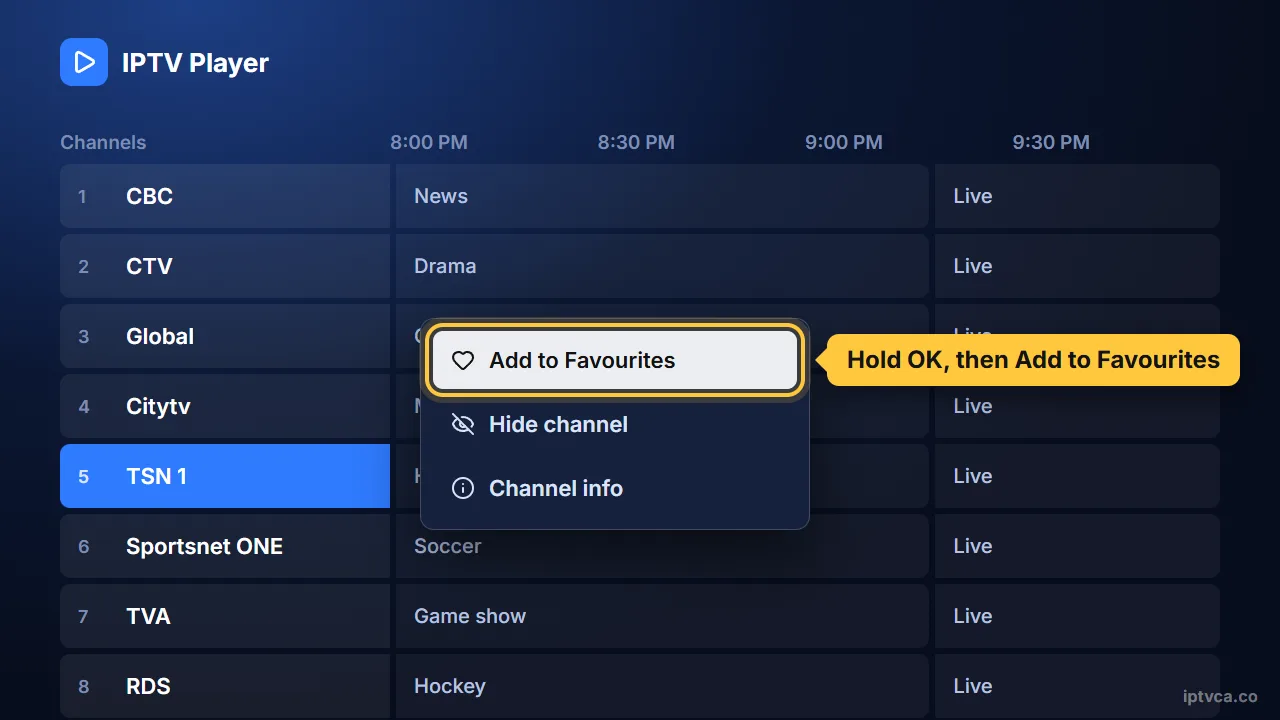
- Pick your favourites
Long-press a channel to add it to Favourites, so your usual channels are always at the top.
Player not in Google Play? Install it with Downloader
Some players are only offered on their own website. Android TV can install them once you allow it.
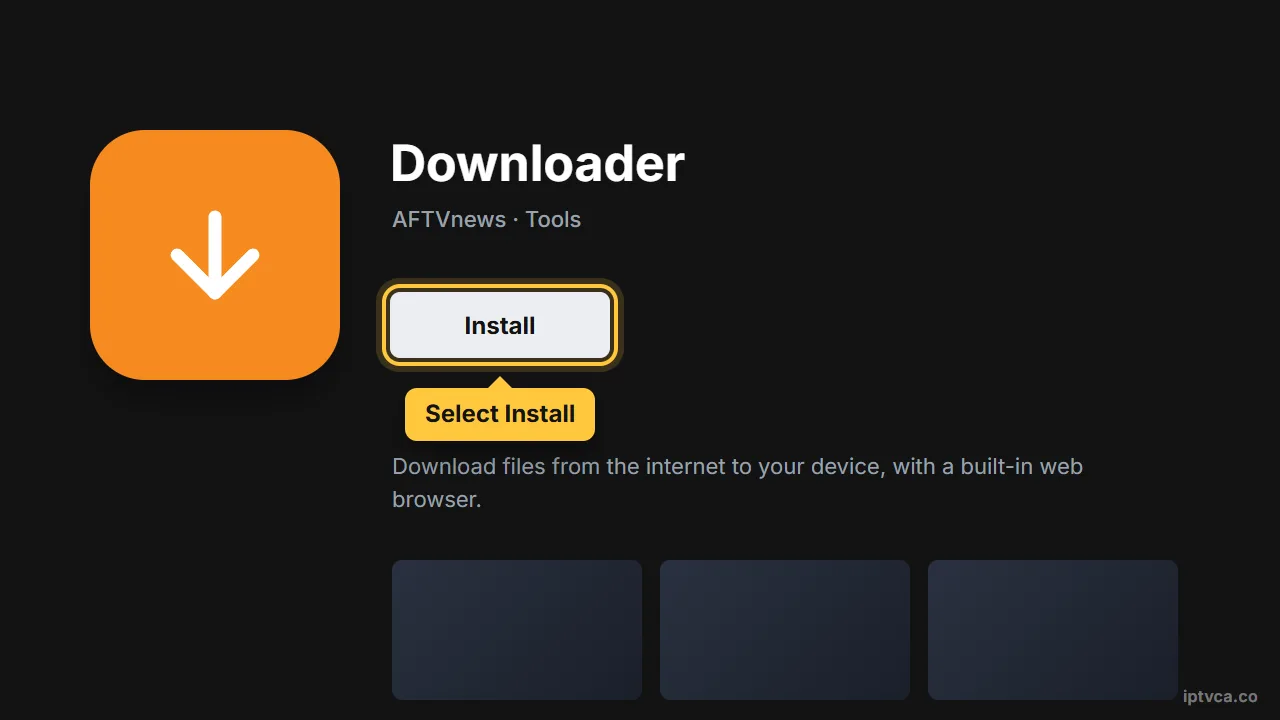
- Install Downloader
Search Downloader in Google Play and install the app by AFTVnews.
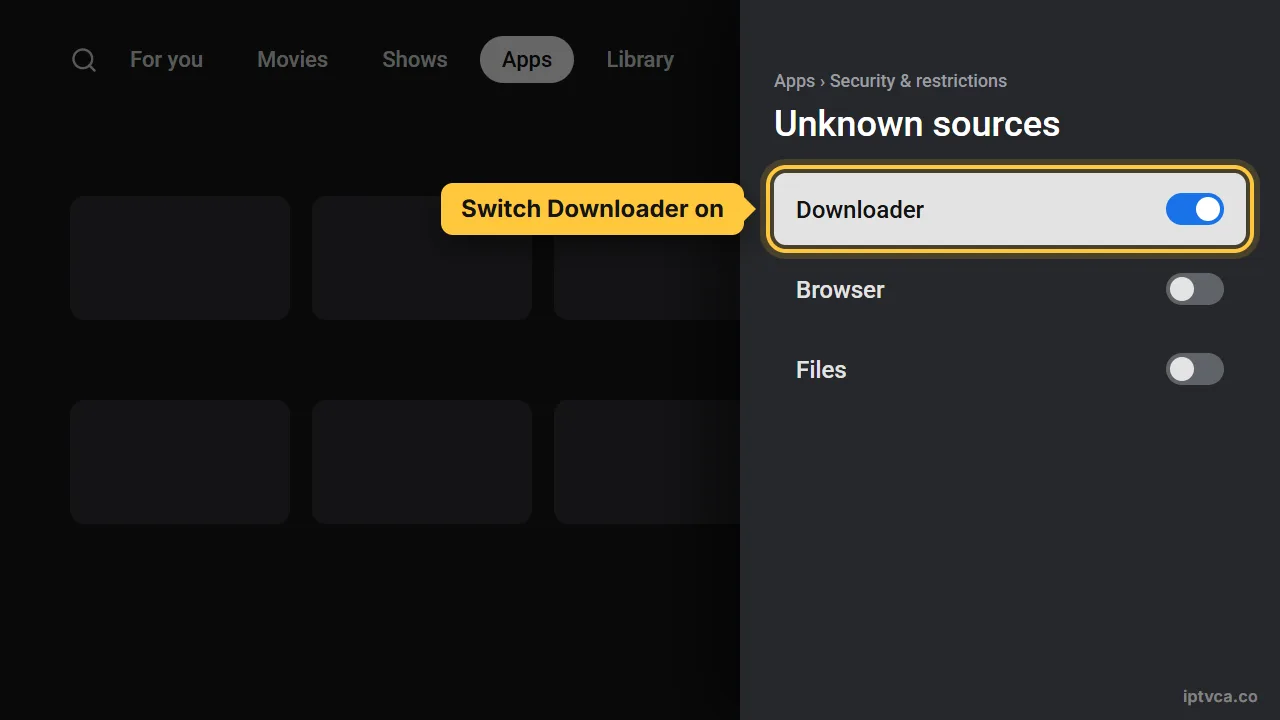
- Allow unknown apps
Open Settings, Apps, Security & restrictions, Unknown sources, and switch Downloader on. Menu names vary a little by brand.
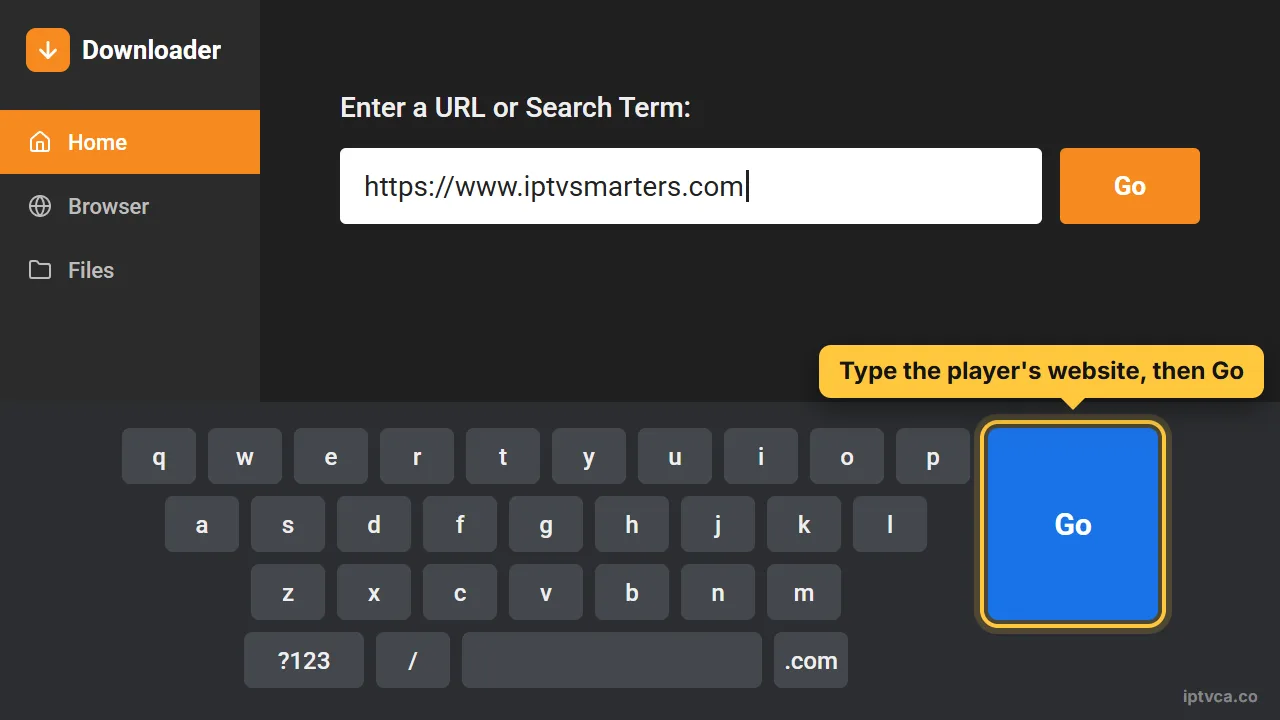
- Download the player
In Downloader, type the player's official website, download the Android TV version, install it, then log in as in Step 2.
Tips for the best picture
- Formuler and BuzzTV boxes run Android and come with their own IPTV app: add your subscription with its Xtream Codes option.
- Around 25 Mbps per screen is comfortable for HD and 50 Mbps for 4K. A wired connection, or Wi-Fi on the 5 GHz band close to the router, prevents most buffering.
- Nvidia Shield and Google TV Streamer handle 4K channels and big guides with no lag.
- Set the player to open at start-up so your TV goes straight to live channels.
Android TV IPTV troubleshooting
- The app isn't in Google Play
Your model or region may not list it. Use Downloader with the player's official website, or pick another player.
- “Invalid login”
Username and password are case-sensitive. Copy them exactly from the email, with no spaces at the end.
- Channels freeze at peak time
Restart the box and the router, then try a cable or the 5 GHz Wi-Fi. Close other apps that download in the background.
- No movies in TiviMate
Movies and series in TiviMate need its Premium upgrade. IPTV Smarters Pro shows them in the free version.
- The guide is empty
Refresh the EPG from the player's settings and wait a few minutes for it to load.
Stuck? Email support@iptvca.co with your device model and the app you use. We answer in English and French. Contact support.
Other devices
Set Up IPTV on Another Device
Every guide uses the same IPTVCA login.
- Fire TV StickFire TV Stick, 4K, 4K Max, Lite, Fire TV Cube, Fire TV smart TVs
- Android TV & Google TVGoogle TV Streamer, Chromecast with Google TV, Nvidia Shield, Sony, TCL, Hisense, Android boxes
- Samsung & LG Smart TVSamsung (Tizen), LG (webOS), Hisense VIDAA and other smart TVs
- RokuRoku TV, Roku Streaming Stick, Express, Ultra
- Apple TV, iPhone & iPadApple TV HD & 4K, iPhone, iPad
Questions
IPTV on Android TV: Quick Answers
What is the best Android box for IPTV in Canada?
The Nvidia Shield TV and Google TV Streamer are the most reliable for 4K. Budget Android boxes work too, but choose one with at least 2 GB of memory and a current Android TV version.
Is TiviMate free?
TiviMate is free to install with live TV and a guide. Some features, including movies and series, need TiviMate Premium, bought from its developer. It's not part of your IPTVCA plan.
Can I use IPTV on an Android phone or tablet too?
Yes. Install a player from Google Play on your phone and log in with the same details. Your plan sets how many devices can stream at the same time.
Does it work on Chromecast?
Chromecast with Google TV and the Google TV Streamer run Android TV apps, so you install a player on them directly. Older Chromecasts can only receive a cast from your phone.
Can I test the setup before I pay?
Yes. Ask for the free 24-hour trial: you get a real login, so you can install the app, check your channels and picture quality, and only choose a plan afterwards.
Try It on Your Android TV for Free
Get a 24-hour trial login, follow this guide, and check your channels before you pay. Plans from $19 CAD.